
Playing Free Fire on PC with a Controller: Maximizing the Gaming Experience

Playing Free Fire on PC with a Controller: Maximizing the Gaming Experience. Battle Royale games have conquered the entertainment world, with Garena's Free Fire standing out as one of the favorites. For many players, the idea of bringing this experience to the computer screen using a controller has become a constant quest for optimization and fun.
In this article, we will explore the steps, tips, and tricks to set up and fully enjoy Free Fire on PC with a controller, using the popular Bluestacks emulator.
It may interest you: The Best Emulator for Free Fire on PC: An Optimal Gaming Experience
Watch Youtube Video:: How To Play Free Fire on your PC using a Controller!
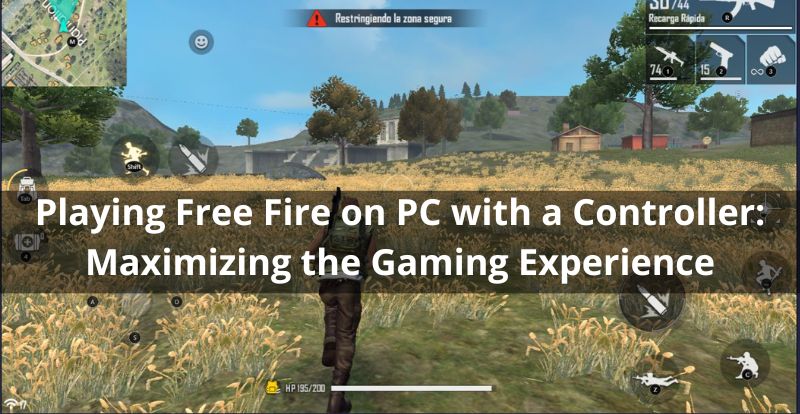
Steps to Play Free Fire on PC with a Controller:
Download and Install Bluestacks:
- Initiate the process by downloading Bluestacks from the official website.
- Complete the installation following the provided instructions.
Controller Setup:
- Download and install drivers corresponding to your gaming controller.
- Physically connect your controller to the computer.
Launching Bluestacks:
- Open Bluestacks and select an account to log in.
Download Free Fire:
- Navigate to the app store within Bluestacks.
- Search for Free Fire and download the game.
Control Configuration:
- Open Free Fire and access the control settings.
- Select your gaming controller and customize the controls to your preferences.
Ready to Play!:
- Save the changes and dive into the world of Free Fire with your controller.
- Now that you've set up your controller and are ready for action, you can showcase your skills to friends and compete with them in a more comfortable and efficient manner.
Playing Free Fire on PC with Google:
If you prefer playing Free Fire through Google, the process is equally straightforward. Log in to your Google account, access the Play Store, search for "Garena Free Fire," and click "Install" to begin the installation on your PC or MAC.
How to Play Free Fire with a Controller on PC: Tips and Tricks:
Controller Configuration:
Configuring your controller correctly is crucial. Whether through Bluetooth or USB, ensure a stable connection. Then, adjust the settings in Free Fire according to your preferences.
Modification of Settings:
Once the controller is ready, further customize the settings to meet your needs. Change buttons, adjust sensitivity, and experiment with vibration to find the perfect combination.
Additional Tips and Tricks:
- Configure buttons carefully to maximize efficiency.
- Opt for wireless mode for a more comfortable gaming experience.
- Adjust vibration according to your preferences to immerse yourself even more in the game.
Control Configuration in Free Fire on a Computer:
If you're using LDPlayer, go to the "Controls" section in Free Fire settings and select "Custom HUD." Modify and adjust buttons to your preferences before clicking "Check" to save the changes.
Adjusting Controls in Garena Free Fire:
Open the game on your preferred platform, access the settings, and click on "Sensitivity Controls." Adjust parameters according to your preferences and get ready to enjoy a personalized gaming experience.
Enjoying Free Fire: The Global Phenomenon
Free Fire's global popularity has made it a cultural phenomenon, and engaging with the game on PC with a controller expands the horizons of enjoyment. As you navigate the diverse landscapes and engage in thrilling battles, the comfort and control provided by a dedicated controller add a new layer to your gaming experience.
playing Free Fire on PC with a controller is an experience you can customize to suit your individual preferences. Follow these simple steps and tips, and you'll be ready to immerse yourself in the exciting world of Free Fire with the comfort and precision that only a controller can provide. Let the battle begin!
Si quieres conocer otros artículos parecidos a Playing Free Fire on PC with a Controller: Maximizing the Gaming Experience puedes visitar la categoría Free fire.
Leave a Reply